
If you're using Quick Start Tool (QST) version 4.1.0 or later, you can quickly view key information about your Donation Station directly within the app.
This information can be useful when contacting our Support team, checking your software version or identifying a specific device in your reports.
How to find your device information
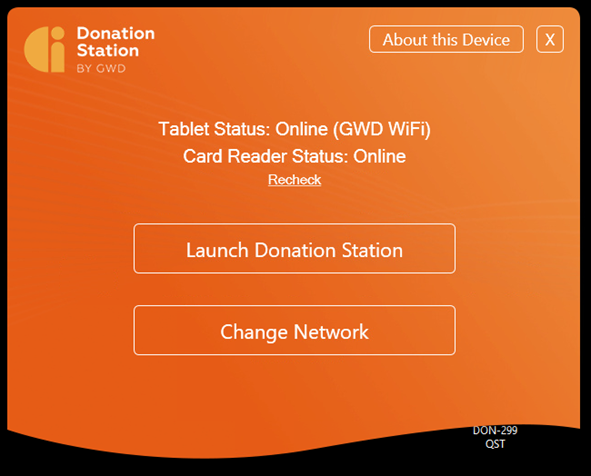
- Open the Quick Start Tool (QST) on your Donation Station.
- Select About this device in the top-right corner.
- A summary of your Donation Station will be displayed.
What information is shown?
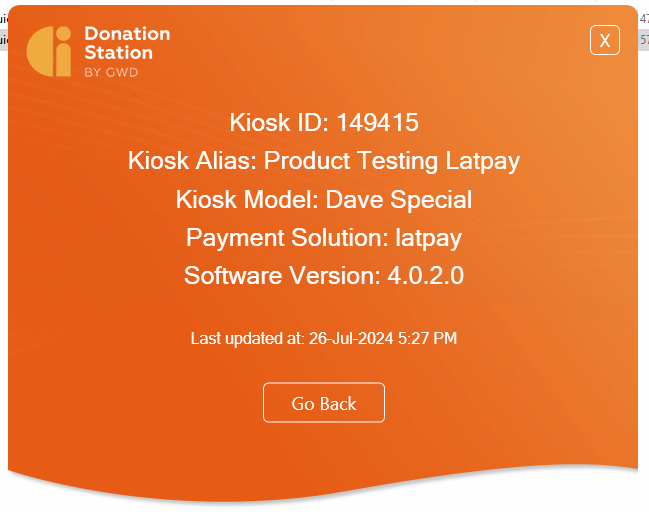
The About this device screen includes:
- Kiosk ID – the unique identifier for your Donation Station.
- Kiosk Alias – the name assigned to your device.
- Kiosk Model – the type of Donation Station you're using.
- Payment Solution – the payment processor configured for your device.
- Software Version – the version of the Donation Station software currently installed.
- Last Updated – the date when this information was last refreshed.
Why is this information useful?
Knowing these details can help you:
- Identify the correct Donation Station when reviewing reports.
- Confirm whether your device is running the latest software version.
- Follow Help Centre guides that apply to your specific device model or software version.
- Provide our Support team with the information they need to resolve your query more quickly.
Need more help?
If you contact Support, it's helpful to include:
- Your Kiosk ID
- Your Kiosk Alias
- Your Software Version
Providing this information will help us identify your Donation Station and investigate your query as quickly as possible.